Description
Product Core Brief
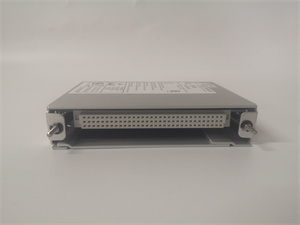
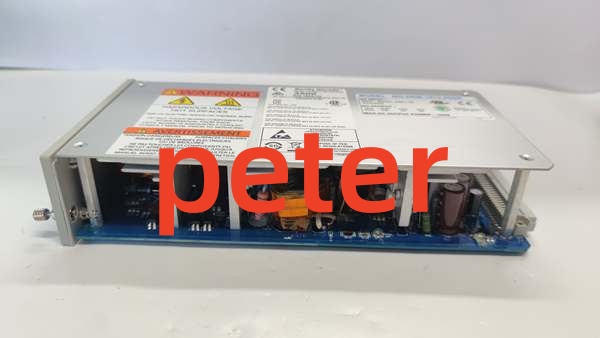
- Model: 106M1079-01
- Brand: Bently Nevada
- Series: 3500 Machinery Protection System
- Core Function: Provides local VGA touchscreen interface for 3500 rack data visualization and configuration.
- Product Type: HMI Display Unit
- Key Specs: 19″ EIA Rack Mount | 15.5W Max Power | Touchscreen Interface
- Note: Verify current OEM support status; legacy interface hardware.
Key Technical Specifications
| Parameter | Specification |
|---|---|
| Display Type | VGA Monitor with Touchscreen |
| Mounting Options | Face Mount, 19″ EIA Rack, Panel, Standalone |
| Max Units per Rack | 2 Display Units |
| Power Consumption | 15.5W (Display + Interface Module) |
| Unit Power (-01) | 5.6W |
| Unit Power (-02) | 12.0W |
| Dimensions | 20 x 20 x 10 cm |
| Weight | 0.55 kg |
| Origin | United States |
| Data Functions | Alarm Display, Historical Recording, Custom Views |
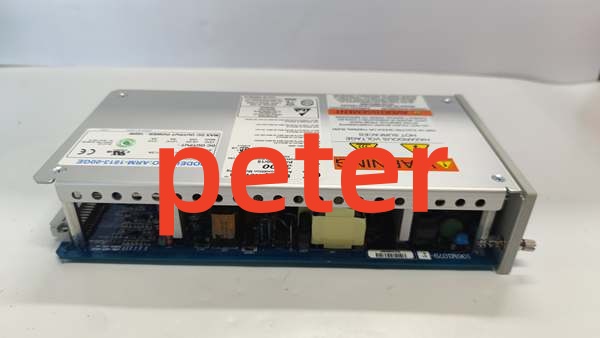
Bently Nevada 106M1079-01
Product Introduction
The 106M1079-01 is a dedicated HMI for the 3500 Machinery Protection System. It connects directly to the rack to render real-time vibration, displacement, and alarm data on a VGA touchscreen.
This unit eliminates the need for a separate PC for basic monitoring. Engineers can adjust setpoints, acknowledge alarms, and review historical trends locally. It supports up to two displays per frame for redundant or split-view monitoring configurations.
QA & Testing SOP (Transparency Building)
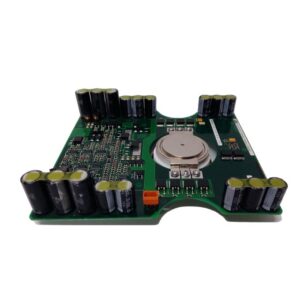
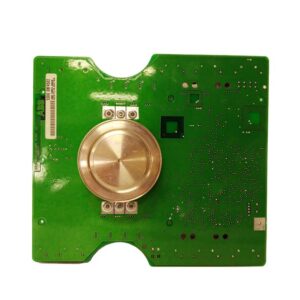
- Incoming Inspection: Verify serial number traceability against OEM records. Inspect PCB for corrosion, cold solder joints, or capacitor bulging. Confirm connector pins are straight and locking mechanisms engage.
- Live Testing: Power up on a test bench 3500 rack. Validate handshake with the 3500/20 or 3500/22 communication module. Cycle through all menu screens to check for dead pixels or touch calibration drift.
- Electrical Testing: Measure insulation resistance on power inputs (>10MΩ). Verify grounding continuity on the chassis. Check internal DC rail voltages with a calibrated Fluke 115 under load.
- Firmware/Config Backup: Record exact firmware revision via the system menu. Photograph all DIP switch and jumper settings before any handling.
- Final QC & Packaging: Clean screen with approved solvent. Bag in anti-static shielding with desiccant. Attach QC pass tag with test date and technician ID.
Installation Pitfalls & Guide (Engineer to Engineer)
❗ Firmware Rev Mismatch: This display must match the 3500 rack firmware generation. A newer display on an old backplane often results in “Comm Fail” or garbled text. Always check the 3500/20 module revision first.
❗ DIP Switch/Jumper Errors: The unit ID and termination settings are hardware-based. Take a high-res photo of the old module’s jumpers before removal. Guessing these settings causes bus collisions or silent failures.
❗ Wiring Incompatibilities: The rear connector is not a standard DB9. Pinouts changed between early and late 3500 displays. Do not force the connector; verify the keying notch aligns perfectly.
❗ Power Draw Changes: While 5.6W seems low, adding a second display pushes the 3500 Power Supply closer to its limit. Calculate total backplane load before installing a second unit to avoid brownouts during alarm floods.
❗ ESD Dangers: The touchscreen controller is highly sensitive. I’ve seen $2,000 modules killed by static from a winter sweater. Always wear a grounded wrist strap when handling the bare PCB.
Replacement Guide:
- Pre-install: Document switch settings, verify power supply headroom, and ground yourself.
- Removal: Disconnect rear cable before unclamping the module. Support the front to prevent leverage damage to the backplane pins.
- Install: Slide in slowly, ensuring zero resistance. Re-engage locking levers fully. Reconnect cable only after seating is confirmed.
- Power-on Test: Verify “Init” screen, then check “System Health” menu for active alarms or comm errors before returning to service.
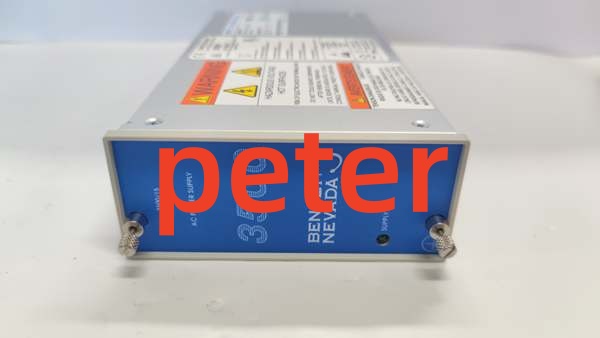
Bently Nevada 106M1079-01
FAQ (Frequently Asked Questions)
Q: Can I hot-swap this display unit?
A: No. While the 3500 monitor modules support hot-swap, the HMI display does not. Removing it while powered can cause a transient on the internal communication bus, potentially rebooting the 3500/20 Comm Module. Always schedule a brief maintenance window.
Q: Why is the touchscreen unresponsive in certain areas?
A: This is usually a calibration drift caused by temperature cycling or aging resistive layers. Try the “Touch Calibrate” utility in the system menu. If it fails, the digitizer is physically degraded and the unit requires replacement. Software fixes won’t resolve hardware wear.
Q: Is this compatible with the newer 3500/93 modules?
A: Generally yes, but verify the firmware matrix. The 3500/93 introduced enhanced diagnostics that older 106M1079-01 revisions cannot display. You might see blank fields for new parameters. Check the Bently Nevada compatibility matrix for your specific firmware version.
Q: What happens if I lose power suddenly?
A: The unit has no internal battery for configuration. All settings are stored in the 3500 rack’s non-volatile memory. Upon power restoration, the display will reload from the rack. If the rack is corrupted, you must reconfigure via the display or System 1 software.
Q: Can I use a standard PC monitor instead?
A: Not directly. The 106M1079-01 contains the proprietary interface logic and power conversion for the 3500 backplane. A standard VGA monitor lacks the serial handshake and power injection required. You would need a separate 3500/22 Comm Module and a PC running System 1 software to replicate this functionality.
Q: Is this unit still supported by the OEM?
A: Bently Nevada has moved toward System 1 and newer HMI solutions. This hardware is considered mature/legacy. While functional and widely available as New Original or New Surplus, long-term firmware updates are unlikely. Plan for eventual migration to a PC-based HMI or newer panel.
Q: Why does the screen flicker at 60Hz?
A: The 106M1079-01 defaults to 60Hz refresh. In environments with heavy fluorescent lighting or VFD-induced EMI, this can cause visible flicker. Check the “Display Setup” menu to toggle to 50Hz if your local grid supports it, or verify the VGA cable shielding is intact. EMI is a common culprit in industrial panels.